How to Find WiFi Password: Easy Ways on Any Device

Finding your WiFi password is a simple task that lets you share your network or reconnect devices quickly. On Windows, the password is viewed in network settings after connecting once. On iPhone or Android, it is shown in the WiFi details screen. The router’s admin page also displays the current password. This guide explains every method step by step so you can retrieve the network key quickly and safely. Whether you forgot the password or need to share it, these easy methods work on computers, phones, and the router itself.
What Is a WiFi Password?
A WiFi password is the secret code needed to join a wireless network. It is also called the network key or passphrase. The password protects the connection from outsiders and keeps data secure.
A lot of people suddenly need to know how to find WiFi Password when they get a new phone, have guests over, or forget what they set it to. This code is set by the router owner and can be changed anytime. It works with both 2.4 GHz and 5 GHz bands. A strong password combines letters, numbers, and symbols to make guessing difficult.
Why You Might Need to Find Your WiFi Password
WiFi passwords are needed when new devices must connect or when the password is forgotten. Guests often ask for the password to use the network. Reconnecting a device after a router reset also requires the current password.
The password is useful for sharing with family members or friends. It is also needed when setting up smart home devices that require network access. Finding the password quickly solves these common situations.
Also, check out Tesla’s billion-dollar AI investment plan and see what’s next in the coming years.
Common Situations Where the Password Is Needed
- New phones or laptops are connected to the network.
- Guests visit and want to use the WiFi.
- Devices are reconnected after a router restart.
These situations make knowing the password very convenient.
How to Find the WiFi Password on Windows PC

The WiFi password is found on a Windows PC by going to Settings and selecting Network & Internet. The connected network is clicked, and the Properties option is chosen. The password is revealed by ticking the Show characters box under the security key field.
This method works only if the computer is already connected to the network. The steps are simple and take less than one minute. The password is displayed clearly for easy reading or sharing.
How to Find the WiFi Password on Mac
The WiFi password is found on a Mac by opening the Keychain Access app from the Utilities folder. The network name is searched in the list and double-clicked to open details. The password is shown by ticking the Show password box and entering the Mac user password.
This method works only on a Mac that is already connected to the network. The steps are safe and built into the operating system. The password is displayed clearly for easy copying or sharing.
But accidentally, if you don’t recover your password, then check out the games played with no wifi and give you an immersive experience.
How to Find the WiFi Password on iPhone
The WiFi password is found on an iPhone by going to Settings and selecting WiFi. The connected network is tapped, and the password field is held until the option to copy appears. The password is copied and pasted wherever needed.
This feature is available on iOS 16 and later. The iPhone must be connected to the network to view the password. The process is fast and requires no extra apps.
How to Find WiFi Password on Android
The WiFi password is found on an Android phone by going to Settings and selecting Network & Internet. The connected network is tapped and the password is shown by tapping the eye icon or share button. The password is displayed or copied for easy use.
This method works on most Android versions with minor differences. The phone must be connected to the network to view the password. The steps are simple and built into the phone settings.
How to Find the WiFi Password on the Router
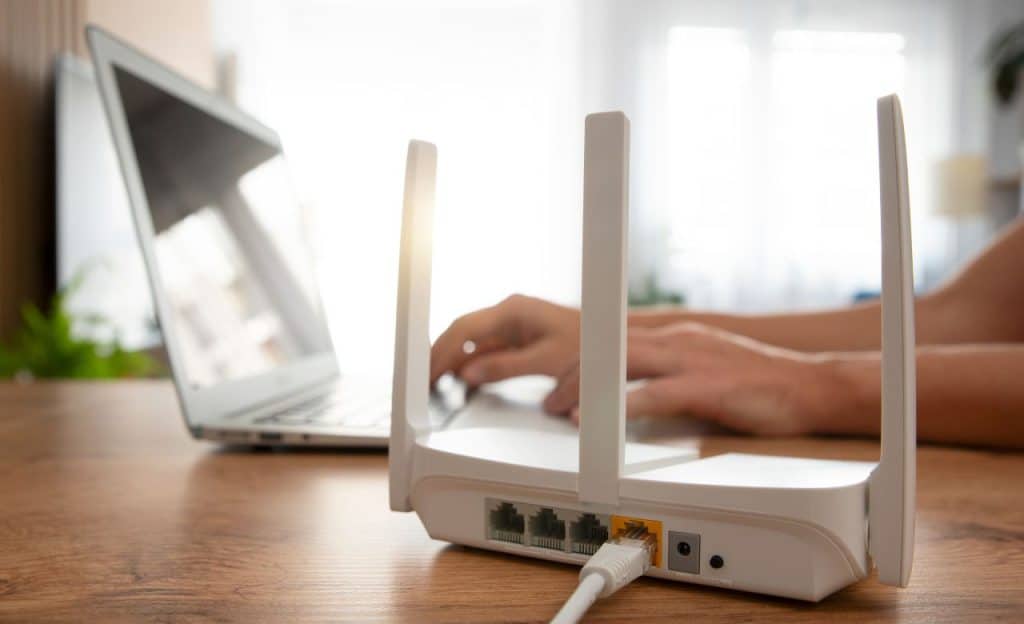
The WiFi password is found on the router by looking at the sticker on the bottom or back of the device. The default password is printed clearly on most routers. This method works when the password has never been changed.
If the password was changed, the router is reset to factory settings to restore the default password. The reset button is pressed for ten seconds while the router is powered on. The default password on the sticker is then used again.
Also, if you are curious about how to connect wifi to an HP printer and what the different methods are.
Ways to Find the Password on the Router
- The sticker on the router is checked for the default password.
- The router is reset if the password is changed.
- The default password is used after reset.
These methods are quick when the router is physically accessible.
How to Locate WiFi Password Using Router Admin Page
The WiFi password is found using the router admin page by typing the router’s IP address in a browser. Login is completed with the admin username and password. The wireless settings section is opened to view the current password.
This method works even if the password was changed from the default. The router IP address is usually 192.168.0.1 or 192.168.1.1. The password is displayed clearly in the settings for easy reading.
Also, learn whether wifi 6 or wifi 7 is good for overall functioning and performance.
Tips for Creating a Strong WiFi Password
Learning how to find WiFi Password on your Windows laptop, Mac, or phone is actually pretty simple once you know where to look. Tips for creating a strong WiFi password include using a mix of letters, numbers, and symbols. The password is kept at least 12 characters long for better security. Personal information like names or dates is avoided to prevent easy guessing.
The password is written down in a safe place or stored in a password manager. It is changed every few months for ongoing protection. These choices balance security and ease of remembering.
Good Password Ideas
- Random combinations of letters and numbers are used.
- Passphrases with symbols are created for strength.
- Personal details are never included in the password.
These ideas help create secure yet memorable WiFi passwords.
Key Points to Remember About Finding WiFi Password

Important points must be kept in mind about finding WiFi password. These reminders help users retrieve the password safely.
- WiFi password is found on the router sticker, in device settings, or through the router admin page.
- The password is needed for new devices or after a router reset.
- All methods require the device to be already connected or physical access to the router.
- Strong passwords are created using letters, numbers, and symbols.
- The process is safe and does not affect internet speed.
- Regular changes improve network security.
- The password is shared only with trusted people.
These key points provide a quick and useful summary.
Frequently Asked Questions
Common questions about finding a WiFi password are answered below in simple words.
How to Find WiFi Password without the router?
Yes, the WiFi password can be found without the router by checking connected devices like a Windows PC, a Mac, an iPhone, or an Android phone. The password is displayed in the network settings of any device already connected to the network.
Will changing my WiFi password disconnect all devices?
Yes, changing the WiFi password will disconnect all devices. They must be reconnected manually using the new password. The disconnection lasts only until the update is complete.
Is it safe to share my WiFi password?
It is safe to share the WiFi password with trusted family and friends. The password should never be shared publicly or with strangers. A strong password reduces the risk even if it is shared.
How often should I change my WiFi password?
The WiFi password should be changed every few months for better security. It is also changed when the router is reset or when someone who should not have access leaves. Regular changes keep the network more secure.
Can I see my WiFi password on the router app?
Yes, many router brands have mobile apps that show the current WiFi password. The app is downloaded from the official store and connected to the router. The password is displayed clearly in the app settings.
Conclusion
Figuring out how to find WiFi Password can save you a ton of hassle, especially when the router sticker is missing or you can’t log into the admin page. The process is safe and quick when the correct steps are followed. When the password is known, sharing the network and reconnecting devices becomes easy and convenient.
Readers are encouraged to check their current WiFi password today using one of the methods described. A strong and unique password helps protect the whole family from unwanted access. Better network security is achieved when the password is known and updated regularly with care.