How to Connect HP Printer to WiFi: Easy Step-by-Step Guide

Connecting an HP printer to WiFi is a simple process that allows wireless printing from phones, laptops, and tablets without cables. The printer is configured using the HP Smart app or the printer’s control panel, and it joins your home network in minutes. A Stable WiFi connection is achieved by entering the correct network name and password, after which the printer can be used from any device on the same network. This guide explains every method clearly so users can complete the setup quickly and enjoy cable-free printing.
What Is WiFi Connection for an HP Printer?
WiFi connection for HP printer means linking the printer wirelessly to your home router. The printer joins the same network as other devices so printing jobs can be sent from anywhere in the house. This setup removes the need for USB cables and makes sharing the printer easier for everyone.
A lot of people get stuck when they buy a new HP printer and need to figure out “How to Connect HP Printer to WiFi” so they can print from their phone or laptop without cables. The connection uses radio signals to send data between the router and the printer. Once connected, the printer appears on all devices connected to the same WiFi network. This feature is available on most modern HP printers and works with both 2.4 GHz and 5 GHz bands.
Things Needed Before Connecting an HP Printer to WiFi
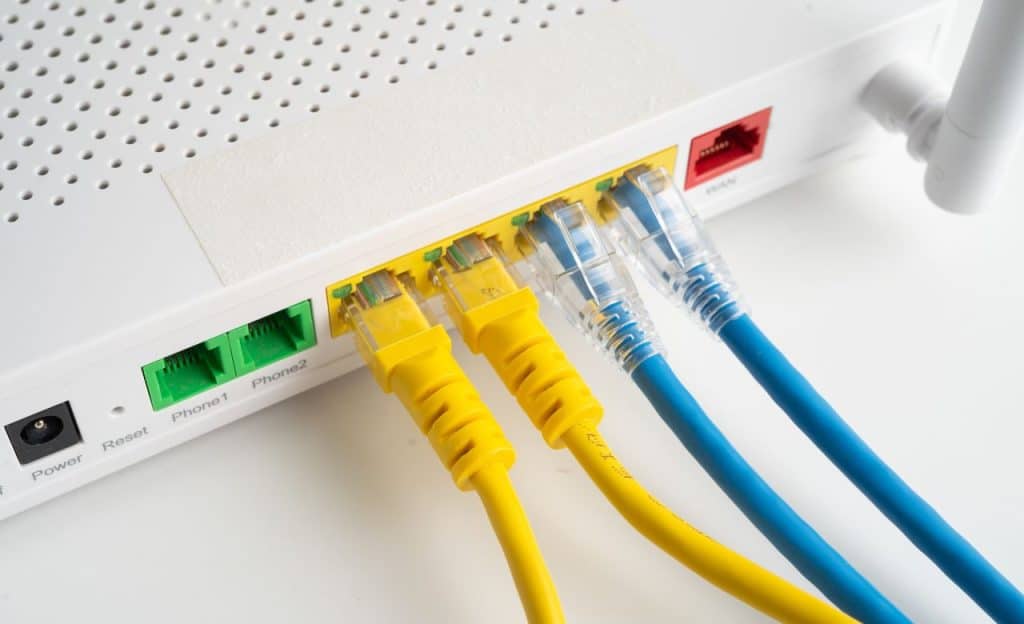
Things needed before connecting the HP printer to WiFi include a stable internet connection and the correct WiFi password. The HP Smart app is downloaded on a phone or computer for easier setup. The printer must be turned on and placed within a good range of the router.
Basic information like the network name and password, is kept ready. The printer manual or quick start guide is useful for model-specific steps. These preparations make the entire process smooth and quick.
Additionally, check out the procedure to change the wifi password with simple and easy steps.
Preparation Checklist
- A stable WiFi network with a known password is required.
- HP Smart app is installed on a phone or computer.
- The printer is powered on and placed near the router.
These items ensure the setup goes without problems.
Step-by-Step Guide to Connect HP Printer to WiFi Using HP Smart App
The easiest way for most people to learn “How to Connect HP Printer to WiFi” is by using the official HP Smart app, which walks you through the whole setup in just a few minutes. The HP Smart app is used to connect an HP printer to WiFi by opening the app and selecting the printer model. The app searches for the printer and guides the user through entering the WiFi password. The connection is confirmed when the printer shows a solid blue light or displays a success message.
The app also downloads the latest drivers automatically. Setup is completed in a few minutes on most models. This method is recommended for beginners because it is guided and user-friendly.
Furthermore, if you want to dive into the history of wifi invention and see what the technology is behind it.
Step-by-Step Guide to Connect an HP Printer to WiFi Using the WPS Button
The WPS button is used to connect the HP printer to WiFi by pressing the WPS button on the router first. The WPS button on the printer is pressed within two minutes to pair the devices. The connection is established when the printer lights stop blinking and show a steady signal.
This method does not require entering the WiFi password manually. It is fast and works well for printers that have a physical WPS button. The router must support WPS for this method to work.
Also, see the step-by-step installation of cooling system for GPU in detail and see the benefits.
Step-by-Step Guide to Connect an HP Printer to WiFi Manually
If you prefer doing it manually, “How to Connect HP Printer to WiFi” usually involves pressing the WPS button on your router and the printer at the same time or entering the network details on the printer’s screen. Manual setup is used to connect an HP printer to WiFi when the app or WPS method is not available. The printer’s control panel is used to select the network name from a list. The WiFi password is entered using the printer’s keypad or touchscreen.
The connection is tested by printing a test page from the printer menu. This method works on older models that do not support the HP Smart app. Careful typing of the password is important for a successful connection.
Moreover, now you can also connect a PS4 controller with a PS5 through multiple ways via Bluetooth or through DualShock 4.
Troubleshooting HP Printer WiFi Connection Problems
Troubleshooting HP printer WiFi connection problems is done by restarting both the printer and the router first. The printer is moved closer to the router to improve signal strength. The correct WiFi password is double-checked and re-entered if needed.
Driver updates are installed through the HP Smart app or the official website. Network settings on the printer are reset when other steps fail. These fixes solve the most common connection issues quickly.
Stuck to share wifi password on an iPhone? Now your problem is no more. Explore this informative guide and ease your problems.
Common Fixes for Connection Issues
- The printer and router are restarted to refresh the connection.
- The printer is placed closer to the router for a stronger signal.
- The correct WiFi password is entered carefully during setup.
These fixes resolve the majority of connection problems.
Tips to Maintain a Stable WiFi Connection for HP Printer
Tips to maintain a stable WiFi connection for the HP printer include keeping the printer within a good range of the router. The 2.4 GHz band is used when the 5 GHz band gives a weak signal. Firmware updates are installed regularly through the HP Smart app.
Interference from other devices is reduced by changing the WiFi channel on the router. The printer is not placed near thick walls or metal objects. These tips keep the connection reliable for daily printing needs.
Simple Maintenance Tips
- Printer is kept close to the router for strong signal.
- Firmware updates are checked and installed regularly.
- WiFi channel is changed if interference is noticed.
These tips help maintain a steady and fast connection. Once you know “How to Connect HP Printer to WiFi,” you’ll be able to print wirelessly from anywhere in the house, which makes life so much more convenient.
Key Points to Remember About Connecting an HP Printer to WiFi
Important points must be kept in mind about connecting the HP printer to WiFi. These reminders help users complete the setup successfully.
- WiFi connection for the HP printer is established through the HP Smart app or the WPS button.
- A stable internet connection and a correct password are required for successful setup.
- The printer must be restarted after the connection is made.
- Troubleshooting starts with restarting devices and checking signal strength.
- Regular firmware updates keep the connection stable and secure.
- The process is simple and takes only a few minutes on most models.
- All devices on the same network can print once the connection is complete.
These key points provide a quick and useful summary.
Frequently Asked Questions
Common questions about connecting HP printer to WiFi are answered below in simple words.
How long does it take to connect an HP printer to WiFi?
Connecting HP printer to WiFi usually takes two to five minutes. The process is completed quickly when the correct password is entered. Restarting the printer after setup ensures the connection works properly.
Do I need the HP Smart app to connect my printer?
The HP Smart app is not always required, but it makes the setup easier and faster. Some older printers can be connected using the WPS button or the manual method. The app is recommended for the best experience.
Can I connect my HP printer to WiFi without a computer?
Yes, HP printer can be connected to WiFi without a computer using the HP Smart app on a phone. The WPS button method also works without a computer. The printer’s own screen can be used for manual setup on some models.
What should I do if my HP printer does not connect to WiFi?
If HP printer does not connect to WiFi, the router and printer are restarted first. The correct password is checked and re-entered. The printer is moved closer to the router to improve signal strength.
Will changing my WiFi password disconnect the printer?
Yes, changing the WiFi password will disconnect the printer. The new password must be entered again on the printer to reconnect. The setup process is repeated with the updated password.
Conclusion
Connecting an HP printer to WiFi is a quick and simple process that removes the need for cables and makes printing more convenient. The steps are easy to follow using the HP Smart app, WPS button, or manual method. When the correct password is entered and the connection is tested, the printer works smoothly with all devices on the network.
If you’re still having trouble with “How to Connect HP Printer to WiFi,” restarting both your router and printer often fixes the connection issue right away. Readers are encouraged to try the steps today and enjoy wireless printing from phones and computers. A stable WiFi connection is maintained by keeping the printer close to the router and updating firmware regularly. A better printing experience is achieved when the setup is done carefully and the network is kept secure.