How to Share WiFi Password on iPhone: Easy Guide for 2026
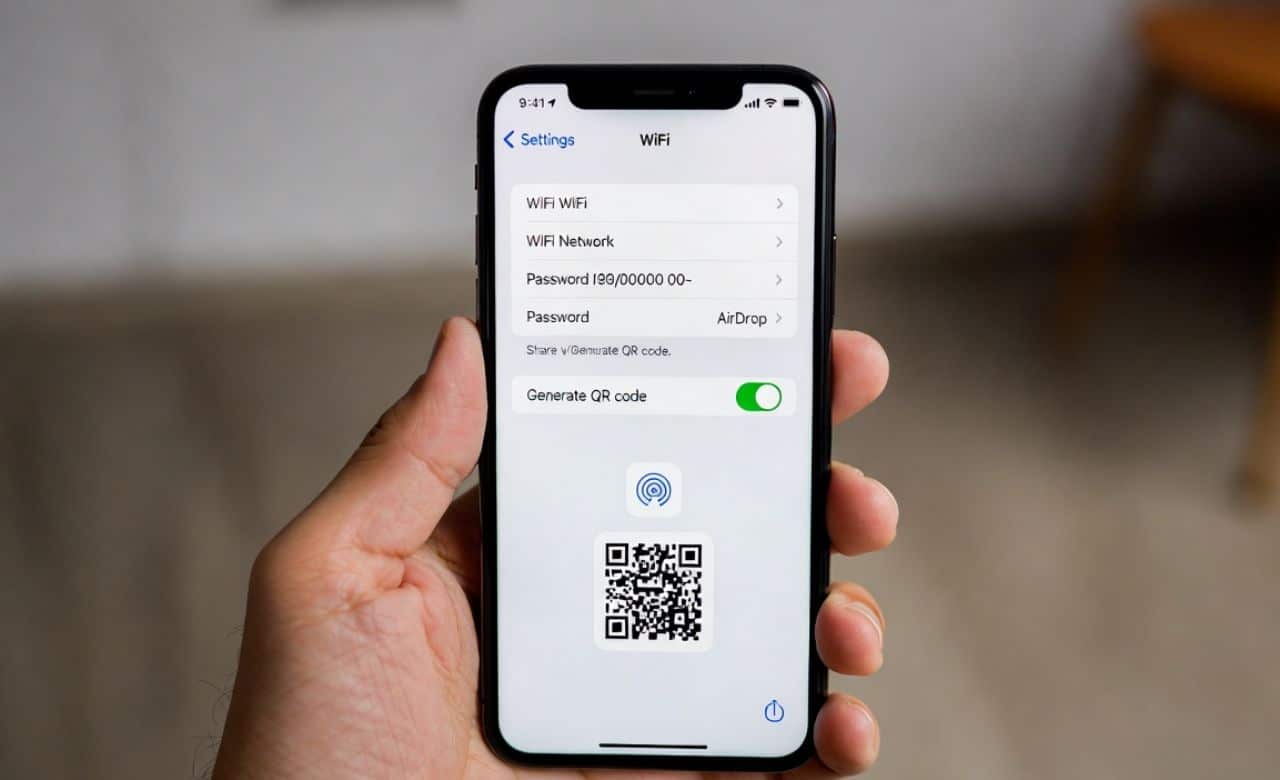
Sharing a WiFi password on an iPhone is simple and secure with built-in iOS features. On iOS 16 and later, the password is shared instantly by bringing two iPhones close together or using the Passwords app. The process uses secure authentication and does not reveal the password in plain text. This guide explains every method clearly so users can share their network with family and friends without typing long codes manually. The steps are quick, safe, and require no extra apps in most cases.
What is WiFi Password Sharing on iPhone?
WiFi password sharing on iPhone is a built-in feature that allows users to send network credentials to another device without typing the password. The system uses secure authentication protocols to transfer the information safely. This feature is designed to make connecting new devices fast and convenient. A bunch of people search for “How to Share WiFi Password on iPhone” when friends come over, and they don’t want to type in that long password every single time.
The sharing process is protected by Apple’s security standards. The password itself is never shown on the screen during sharing. It is one of the most useful iOS tools for households with multiple devices and guests.
Requirements for Sharing WiFi Password
Requirements for sharing a WiFi password include iOS 16 or newer on both devices. Both iPhones must have Bluetooth and WiFi turned on and be placed close to each other. The devices need to be signed in with an Apple ID or use AirDrop for older methods.
The person receiving the password must accept the share request. The network must already be saved on the sharing iPhone. These simple conditions ensure the feature works smoothly every time.
Also, if you forget your passwords, then here are simple ways to find out your Wi-Fi passwords on any device, just by following these simple steps.
Basic Requirements Checklist
- iOS 16 or later is installed on both devices.
- Bluetooth and WiFi are enabled during sharing.
- Devices are placed within a few inches of each other.
These requirements are easy to meet on modern iPhones.
Step-by-Step Guide to Share WiFi Password Using Proximity
The easiest way for How to share WiFi Password on iPhone is to bring the two phones close together, and your iPhone will pop up a sharing option automatically. The shared iPhone shows a prompt to share the password when the other device tries to join the network. The Share Password button is tapped to complete the transfer securely.
The receiving device connects automatically after the share is accepted. No typing is needed on either phone. This method is the fastest and most convenient way to share the network.
Dive into the digital world and explore the easy steps to connect Alexa to wifi and get everything done just by your voice.
Detailed Proximity Sharing Steps
- The receiving iPhone attempts to join the WiFi network.
- The sharing iPhone detects the request and shows a prompt.
- The Share Password option is tapped to send the credentials.
These steps complete the sharing in seconds.
Step-by-Step Guide to Share WiFi Password Using the Passwords App
The Passwords app is used to share the WiFi password by opening the app and selecting the network name. The Share option is tapped, and the contact or AirDrop is chosen. The password is sent securely without being displayed on the screen.
This method works even when the other device is not nearby. The shared password is added automatically to the receiving device’s saved networks. The app provides a central place to manage all saved passwords.
In addition, learn about why Tesla is investing in AI and what are the future inventions that have to come by this company.
Steps Using the Passwords App
- The Passwords app is opened from the home screen.
- The saved WiFi network is located and selected.
- The Share button is tapped, and the recipient is chosen.
These steps allow secure sharing at any distance.
Alternative Ways to Share WiFi Password

Alternative ways to share a WiFi password include using AirDrop for quick transfer between Apple devices. The password is copied from the WiFi settings and sent as a text message or note when needed. Manual sharing is used by reading the password and typing it on the other device.
These methods are useful when the proximity or Passwords app method is not available. They provide flexibility for different situations. Each method keeps the password secure during transfer.
Additionally, learn in-depth about how to alter the wifi name in this deep informative guide in simple steps.
Alternative Sharing Methods
- AirDrop is used for fast sharing between nearby Apple devices.
- The password is copied and sent through Messages or Notes.
- Manual entry is done when other options are unavailable.
These alternatives ensure the password can always be shared safely.
Troubleshooting WiFi Password Sharing Issues
WiFi password sharing issues are fixed by ensuring both devices have Bluetooth and WiFi enabled. The devices are brought closer together, and the sharing prompt is checked again. The Passwords app is restarted if the share option does not appear.
The iOS version is confirmed to be 16 or later on both phones. The network is forgotten and re-added on the receiving device if needed. These steps resolve the most common sharing problems quickly.
On the other hand, if you are unable to share the password, then check out these top Wi-Fi-free games that will kill your free time easily.
Quick Troubleshooting Steps
- Bluetooth and WiFi are turned on for both devices.
- Devices are placed close together for proximity sharing.
- The Passwords app is restarted if the share fails.
These steps fix the majority of sharing issues.
Tips for Secure WiFi Password Sharing

Tips for secure WiFi password sharing include using the built-in iOS features instead of typing the password out loud. The password is never shared through unsecured messages or public notes. Sharing is done only with trusted people to maintain network safety.
The Passwords app is preferred for its encrypted transfer method. The network name is kept simple and recognizable for easy identification. These tips keep the sharing process both convenient and secure.
Also if you are not able to connect PS5 controller to iphone then explore multiple ways in no time.
Secure Sharing Tips
- Built-in sharing features are used for encrypted transfer.
- The password is shared only with trusted contacts.
- The network name is kept clear and easy to identify.
If you’re on iOS 16 or newer, “How to Share WiFi Password on iPhone” has become super simple: just tap Share Password when the other person tries to connect. These tips protect the network while making sharing simple.
Key Points to Remember About Sharing WiFi Password on iPhone
Important points must be kept in mind about sharing the WiFi password on an iPhone. These reminders help users share safely and effectively.
- WiFi password is shared using proximity, the Passwords app, or AirDrop on iPhone.
- The process is secure and does not display the password in plain text.
- Both devices need Bluetooth and WiFi enabled for successful sharing.
- The feature works on iOS 16 and later versions.
- Sharing is done only with trusted people for security reasons.
- The connection is tested after sharing to confirm success.
- Regular checks ensure the feature remains available after updates.
These key points provide a quick and useful summary.
Frequently Asked Questions
Common questions about sharing a WiFi password on an iPhone are answered below in simple words.
Can I share the WiFi password without the other person having an iPhone?
Yes, a WiFi password can be shared without the other person having an iPhone by using the Passwords app or the manual copy method. The password is copied and sent through any messaging app. The receiving device can then enter it manually.
Is sharing a WiFi password safe on an iPhone?
Yes, sharing a WiFi password is safe on an iPhone because the built-in features use an encrypted transfer. The password is never shown in plain text during sharing. The process is designed to protect network security.
How to Share WiFi Password on iPhone using AirDrop?
WiFi password is shared using AirDrop by opening the Passwords app, selecting the network, and tapping Share. AirDrop is chosen as the method, and the recipient device is selected. The password is transferred securely without typing.
Will the other person see my WiFi password when I share it?
No, the other person will not see the WiFi password in plain text. The password is added automatically to their saved networks. The sharing process keeps the code hidden for security.
Can I share the WiFi password from an old iPhone model?
Yes, the WiFi password can be shared from older iPhone models by using the manual copy method or AirDrop. The Passwords app method requires iOS 16 or later. The proximity method works on newer models only.
Conclusion
Learning “How to Share WiFi Password on iPhone” saves so much hassle, especially when you have guests or family members who aren’t great with tech. The steps are simple and designed to protect the network while making connections easy for others. When the correct method is followed, guests and family members can join the network without typing long codes.
Readers are encouraged to try the steps today using the Passwords app for the safest sharing. A stable WiFi connection and trusted contacts ensure the process remains secure. Better network management is achieved when the sharing feature is used thoughtfully and regularly.